GABB Broker Portal Guide
Complete guide for managing your business listings and broker profile
1. Getting Started
Accessing the GABB Website
Navigate to gabb.bmgtesting.com to access the Georgia Association of Business Brokers website. From here, you can browse listings, find professionals, and access member resources.

GABB homepage with navigation menu showing Home, Events, About, Listings, Buy, Sell, Professionals, and Resources
Logging In to Your Account
Click the "Log In" button in the top right corner of the navigation bar. Enter your email address and password to access your broker account.
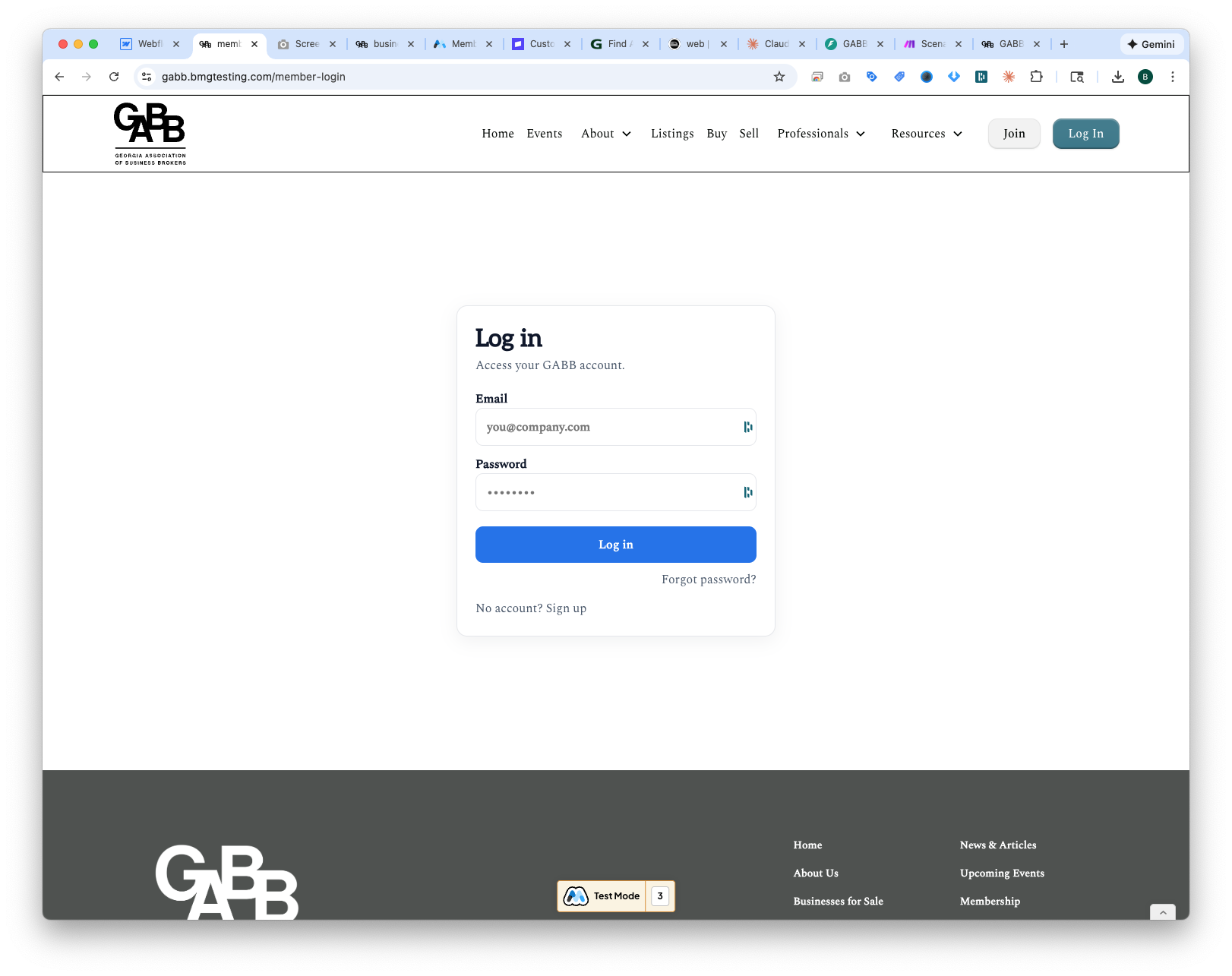
Login page - Enter your email and password to access your GABB account
- Email – Enter the email address associated with your GABB membership
- Password – Enter your account password
- Forgot password? – Click this link if you need to reset your password
- No account? Sign up – New brokers can apply for membership here
💡 Tip: Keep your login information secure and don't share it with others. If you need to reset your password, use the "Forgot password?" link on the login page.
2. Member Dashboard
After logging in, you'll see your Member Dashboard – your central hub for managing your GABB membership, profile, and business listings.

Member Dashboard showing membership status, billing information, and quick action buttons
Dashboard Information
| Field | Description |
|---|
| Plan | Your current membership type (e.g., "Broker Membership") |
| Last Payment | Amount of your most recent payment |
| Last Billed | Date of your last billing cycle |
| Next Bill | Your upcoming billing date |
| Next Bill Amount | Amount due on next billing date |
Quick Action Buttons
- Manage Profile – Update your contact information, photo, bio, and business specialties that appear in the Broker Directory
- Reset Password – Change your login password
- Manage Listings – View, create, and edit your business-for-sale listings
- Manage Payments – Access the Stripe billing portal to update payment methods or view payment history
- Forms & Downloads – Access member resources including contracts, templates, and official GABB forms
3. Managing Your Profile
Click "Manage Profile" from your dashboard to update your professional information that appears in the GABB member directory. A complete, up-to-date profile helps potential clients find and connect with you.
Basic Information
The first section captures your core professional details:
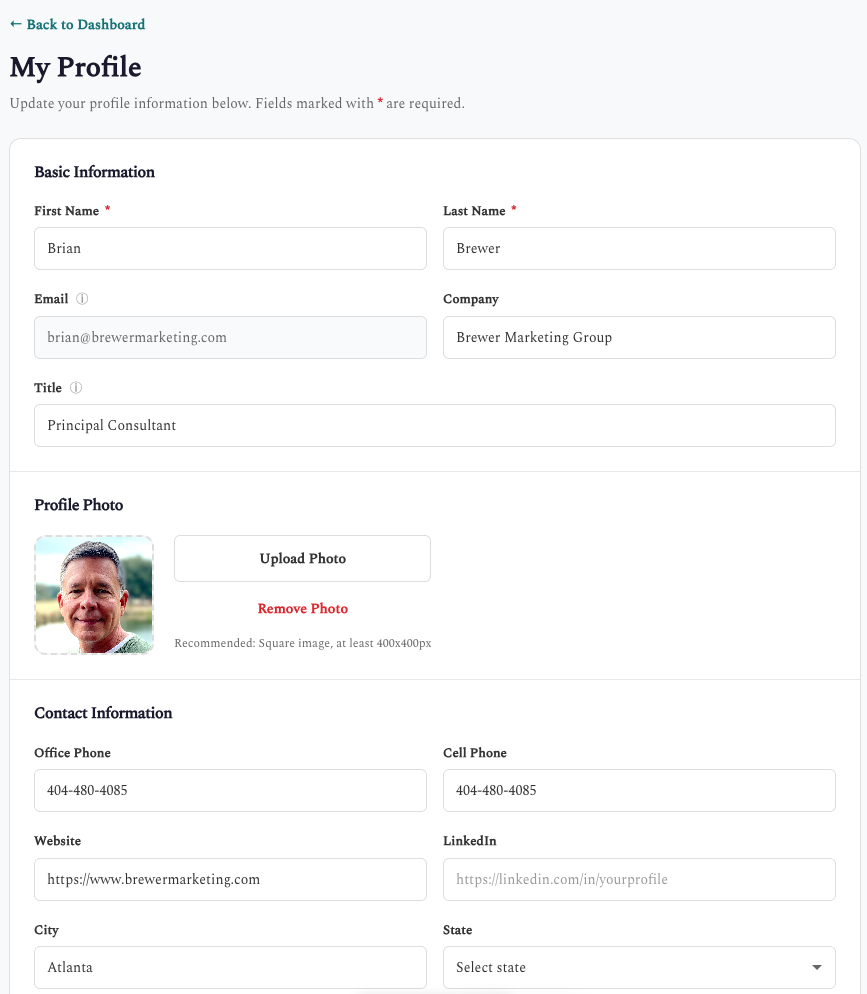
Basic Information section with name, email, company, title, and profile photo upload
- First Name * – Your first name as you want it displayed
- Last Name * – Your last name as you want it displayed
- Email – Your account email address (contact GABB to change)
- Company – Your company or brokerage name
- Title – Your professional title (e.g., Business Broker, CPA, Attorney)
- Profile Photo – Upload a professional headshot. Recommended: Square image, at least 400x400px
Contact Information
Enter your business contact details so clients can reach you:
- Office Phone – Your office phone number (formatted as xxx-xxx-xxxx)
- Cell Phone – Your mobile phone number (formatted as xxx-xxx-xxxx)
- Website – Your company or personal website URL
- LinkedIn – Your LinkedIn profile URL
- City – Your primary business city
- State – Your primary business state
Biography
Your bio is one of the most important parts of your profile – it tells potential clients who you are and why they should work with you:
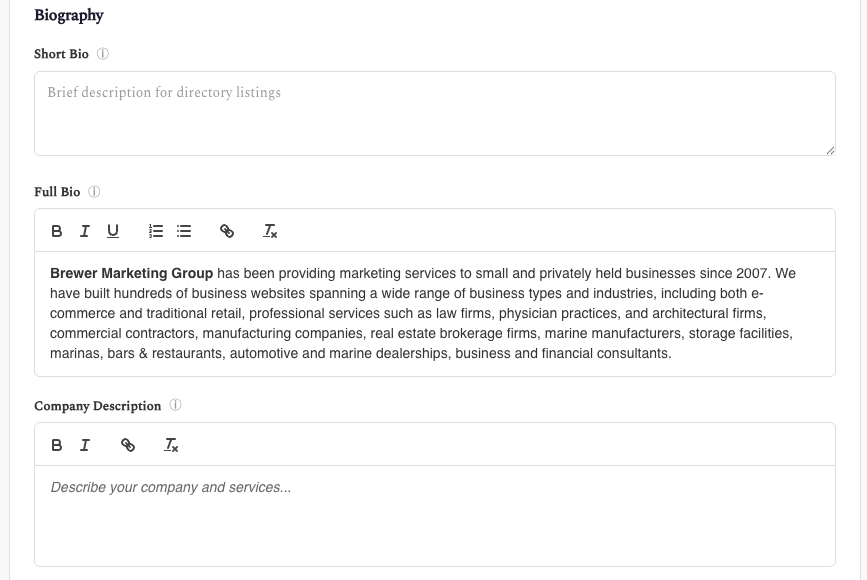
Biography section with Short Bio text field and Full Bio rich text editor
- Short Bio – Brief summary for directory listings (2-3 sentences). This appears on your card in the broker directory.
- Full Bio – Detailed biography shown on your full profile page. Use the rich text editor to format with headers, bold text, lists, and links.
- Company Description – Describe what your company does. This appears below your company name on your profile.
Professional Credentials
Showcase your qualifications and licenses:
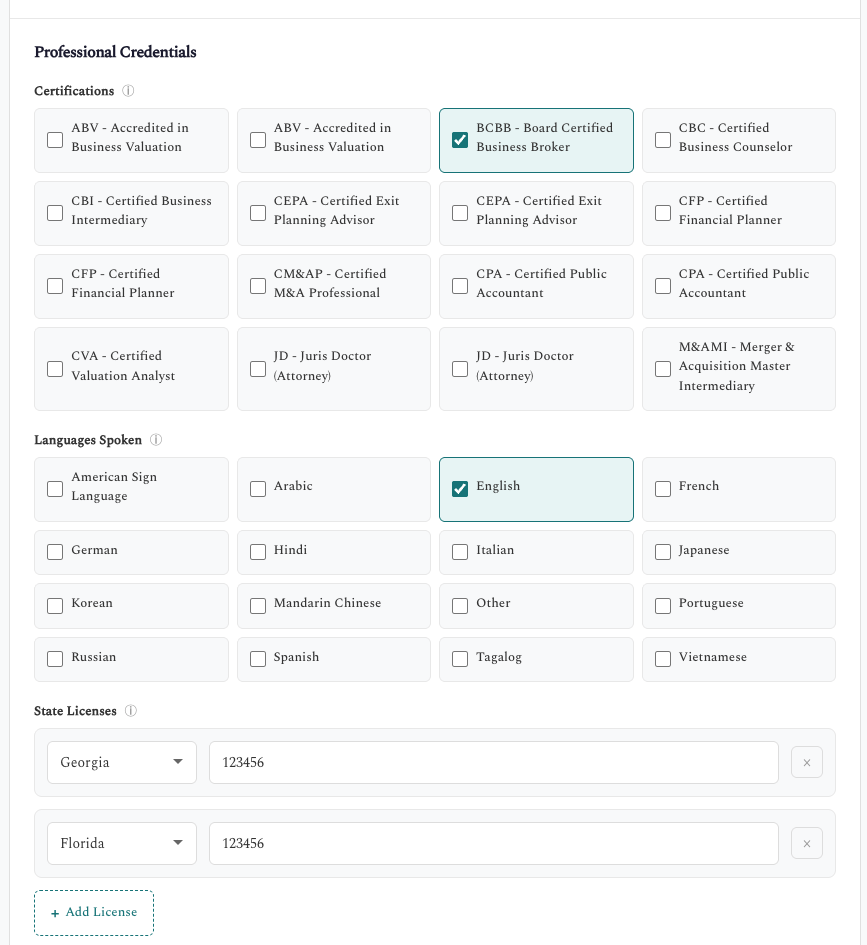
Professional Credentials showing Certifications checkboxes, Languages spoken, and State Licenses
- Certifications – Select all professional certifications you hold (CBI, M&AMI, CBB, etc.)
- Languages Spoken – Select all languages you can conduct business in
- State Licenses – Add your professional license numbers for each state where you're licensed. Click "Add License" to add multiple state/license combinations.
Service Areas, Specialties & Directory Settings
Define your geographic coverage, areas of expertise, and visibility preferences:
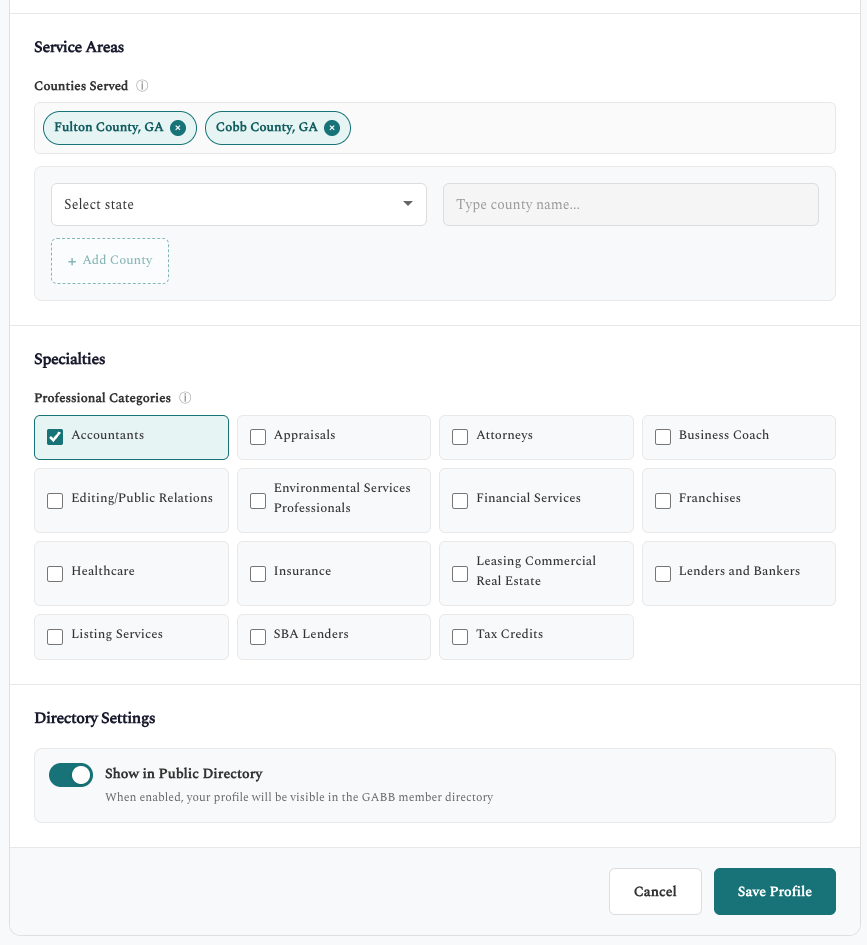
Service Areas with county selection, Business Specialties checkboxes, and Directory Settings toggle
- Counties Served – Add specific counties where you provide services. Select a state, then type to search for counties. You can add multiple county/state combinations.
- Business Specialties (Brokers) – Select the types of businesses you specialize in (e.g., Restaurants, Manufacturing, Healthcare)
- Professional Categories (Affiliates) – Select the professional services you provide (e.g., Accounting, Legal, Financing)
- Show in Public Directory – Toggle ON to make your profile visible in the GABB member directory. Toggle OFF to hide your profile from public view.
Saving Your Profile
After making changes:
- Click Save Profile to save your changes
- A confirmation modal will appear with options to continue editing or return to the dashboard
- Changes take effect immediately on your public profile
💡 Profile Tips:
- Use a professional, high-quality headshot – first impressions matter!
- Keep your Short Bio compelling and focused on your unique value proposition
- List all your certifications – credentials build trust with clients
- Update your counties served to ensure you appear in local searches
- Select all relevant specialties to be found by buyers looking for your expertise
4. My Listings
Click "Manage Listings" from the dashboard to view and manage all your business-for-sale listings. This is where you'll spend most of your time managing your inventory. You can also navigate directly to gabb.bmgtesting.com/my-listings.
View Options
Toggle between different display modes using the view buttons:
⊞ Card
≡ List
Card View
The default view displays your listings as visual cards with images, key details, status badges, and action buttons. Status banners overlay the images for PENDING and CLOSED listings.
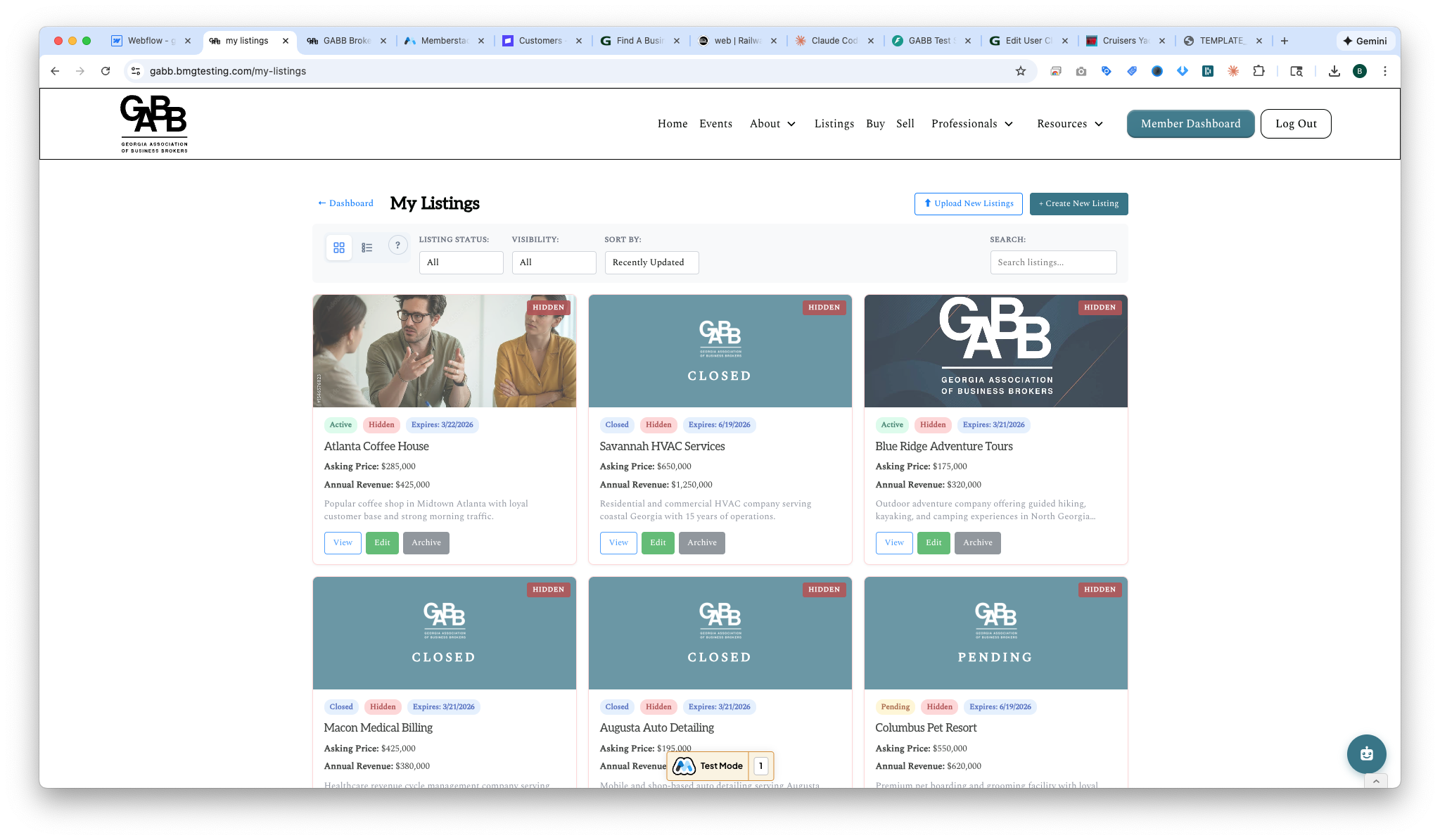
Card View showing listing images with status banners for CLOSED and PENDING listings
List View
Click "List View" for a detailed table format with sortable columns, selection checkboxes, and action buttons.
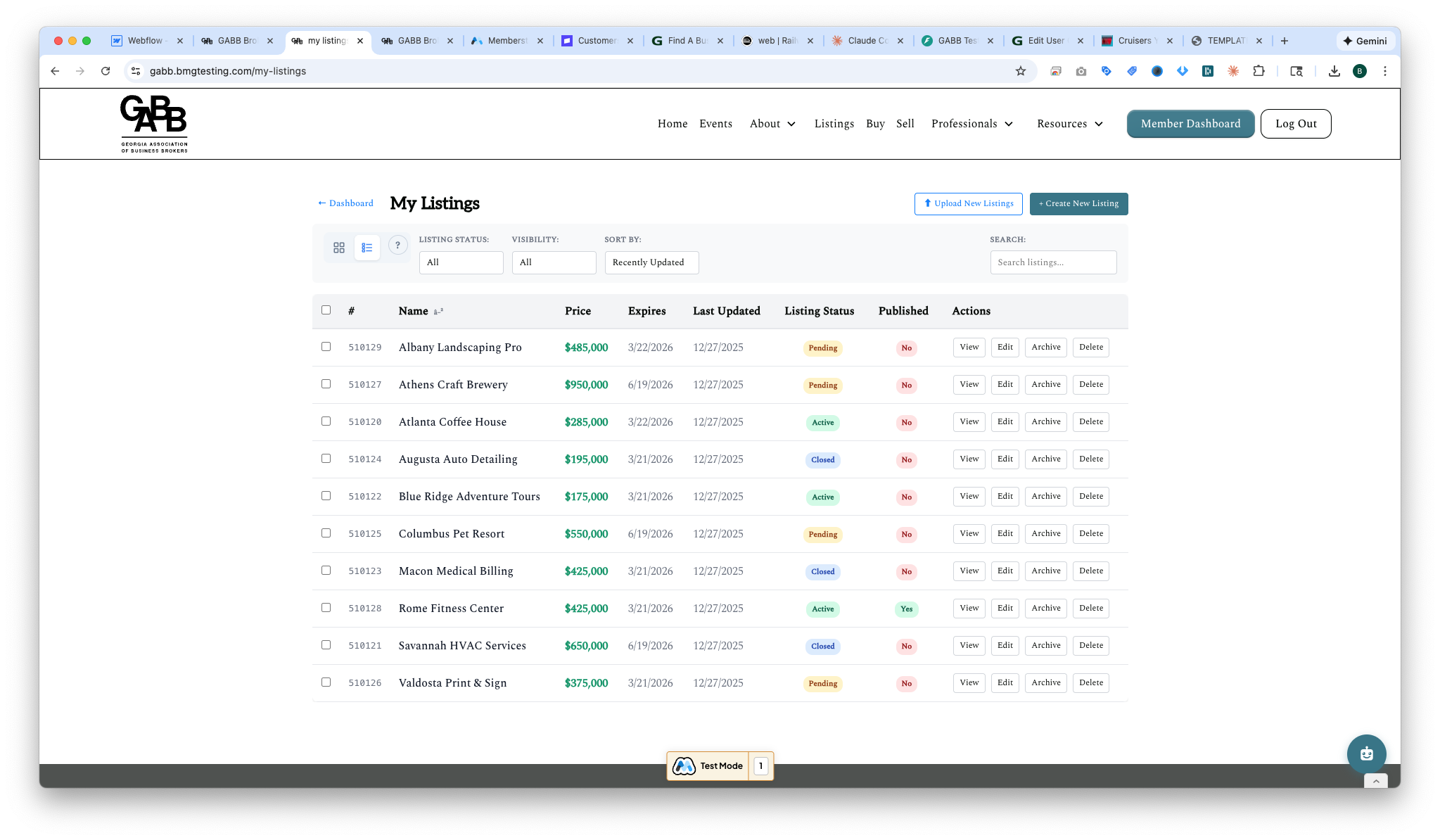
List View with columns for ID, Name, Price, Expires, Last Updated, Status, Published, and Actions
Understanding Status Badges
Each listing displays status badges indicating its current state:
Listing Status (sales process):
- Active – Business is available for sale and actively marketed
- Pending – Under contract, LOI signed, or in due diligence
- Closed – Sale has been completed
Published Status (public visibility):
- Yes – Visible on the public Businesses for Sale page
- No – Hidden from public view
Filtering & Sorting Options
Use the filter and sort controls to quickly find specific listings:
| Filter/Sort | Options | Use Case |
|---|
| Listing Status | All, Active, Pending, Closed | Filter by where listings are in the sales process |
| Visibility | All, Published, Hidden | Filter by public visibility status |
| Sort by | Recently Updated, Expires Soonest, Price, Name | Order listings by different criteria |
| Search | Free text search | Find listings by business name or ID |
Quick Actions
Each listing row includes action buttons:
- View – Opens the public listing page exactly as buyers see it
- Edit – Modify listing details, pricing, images, or status
- Archive – Remove from active listings (can be restored later)
- Delete – Permanently remove listing (cannot be undone)
5. GABBY - Your AI Assistant
🤖 AI-Powered: GABBY uses advanced AI to understand your requests in natural language. Just tell her what you want to do!
GABBY is your AI-powered assistant for managing listings. Access GABBY by clicking the chat icon in the bottom-right corner of the My Listings page.
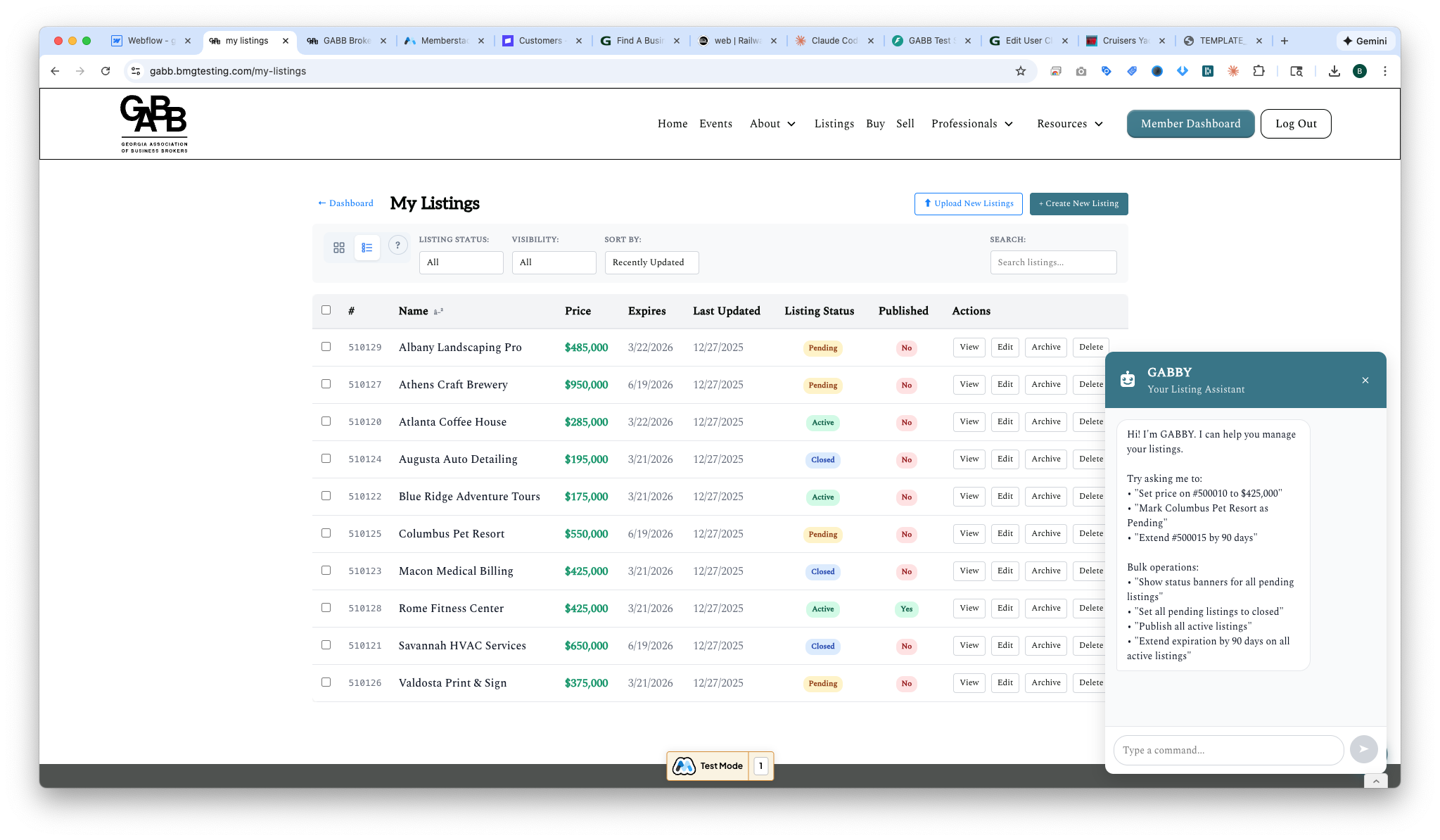
GABBY welcome message with quick action suggestions
What GABBY Can Do
GABBY can help you with:
- Updating listing status (Active, Pending, Closed)
- Publishing or unpublishing listings
- Enabling or disabling status banners
- Updating prices and other fields
- Performing bulk operations on multiple listings
- Answering questions about the portal
Example Commands
Single Listing Commands
"Change Albany Landscaping to pending"
✓ Updated Albany Landscaping Pro status to Pending
More single listing examples:
"Set listing 510129 to closed""Unpublish Athens Craft Brewery""Enable status banner for Columbus Pet Resort""Update price to $550,000 for Macon Medical Billing"
Bulk Commands
GABBY can update multiple listings at once:
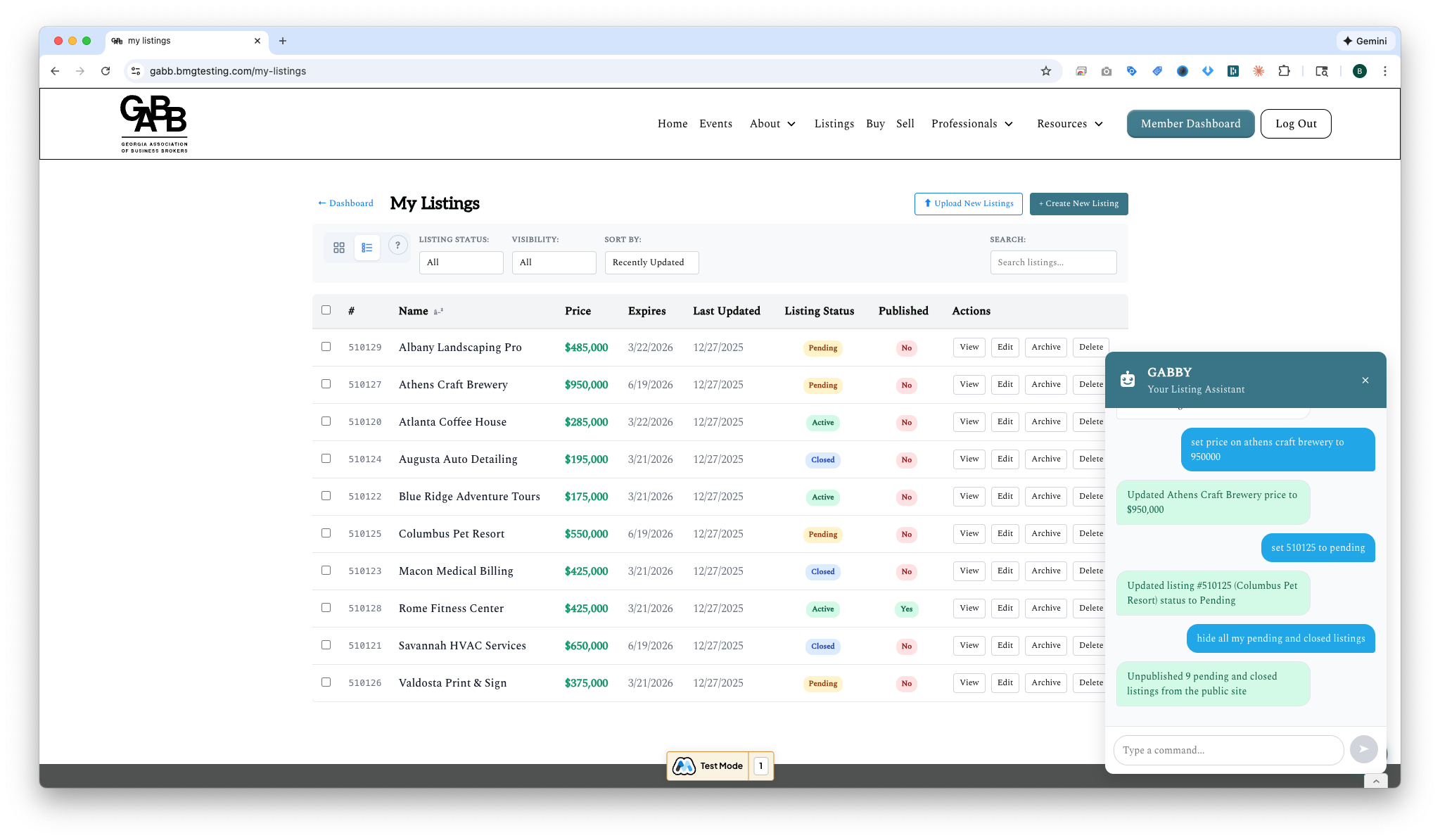
GABBY performing bulk operations on multiple listings
Bulk command examples:
"Set all pending listings to closed""Unpublish all closed listings""Enable status banners for all pending listings""Publish all active listings"
Using the Help System
Click the ? button next to the view toggles or ask GABBY "help" to see:
- Complete command reference
- Example commands for common tasks
- Tips for effective listing management
Undo Feature
Made a mistake? GABBY supports undo for recent actions:
- Say
"undo" or "undo last action"
- Undo is available for 30 seconds after each action
- Works for both single and bulk operations
💡 Tip: GABBY understands natural language, so you don't need to use exact phrases. "Make Albany Landscaping pending" works just as well as "Change status to pending for Albany Landscaping."
6. Bulk Actions
Need to update multiple listings at once? You have two options: use GABBY's natural language commands or select listings manually for bulk operations.
Manual Selection Method
- Switch to List View using the toggle button
- Check the boxes next to listings you want to update
- Use the header checkbox to select/deselect all visible listings
- Choose an action from the bulk action buttons that appear
Available Bulk Actions
| Action | Description |
|---|
| Set Active | Change status to Active for all selected |
| Set Pending | Change status to Pending for all selected |
| Set Closed | Change status to Closed for all selected |
| Publish | Make selected listings visible on public page |
| Unpublish | Hide selected listings from public page |
| Enable Banner | Show status banner on selected listings |
| Disable Banner | Hide status banner on selected listings |
| Download CSV | Export selected listings to spreadsheet |
| Download PDF | Export selected listings to PDF document |
Undo Banner
After any bulk action, an undo banner appears at the top of the page:
- Shows how many listings were updated
- Click "Undo" to reverse the changes
- Banner disappears after 30 seconds
⚠️ Note: Undo is only available for status changes, publish/unpublish, and banner toggles. Delete actions cannot be undone.
7. Creating a New Listing
Click the + Create New Listing button in the top right of the My Listings page to add a new business listing.
Basic Information
Start by entering the core details about the business:
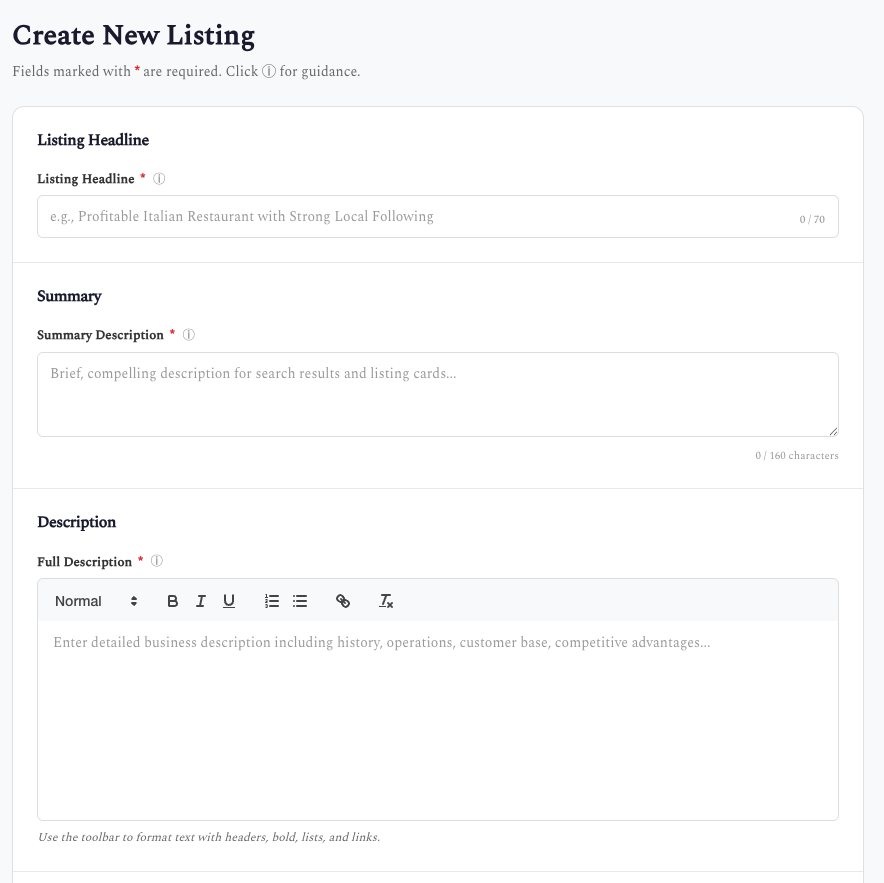
Create Listing form - Listing Headline, Summary Description, and Full Description with rich text editor
- Listing Headline * – Be descriptive and succinct. Write the type of business + a little color. Don't include "For Sale". Example: "Award-Winning Italian Restaurant - Northeast Georgia" (Limit: 70 characters)
- Summary Description * – A brief teaser (1-2 sentences) that appears on listing cards and search results. Make it compelling. (Limit: 160 characters)
- Full Description * – Detailed business description. Include history, operations, growth potential, and key selling points. Use the toolbar to format text with headers, bold, lists, and links.
Location & Industry Category
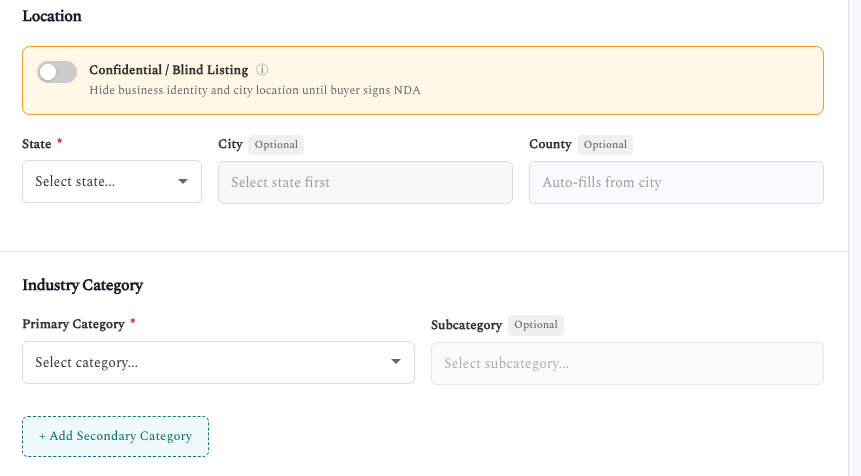
Location settings with Confidential/Blind Listing option, and Industry Category selection with subcategories
- Confidential / Blind Listing – Business name hidden until NDA signed. Use a generic headline describing the business type, not the actual name. Location shown at state or county level only.
- State * – Select the state where the business is located. Southeastern states (GA, FL, AL, TN, NC, SC) are marked with ★
- City – Enter the city (optional). Auto-fills county when selected.
- County – Auto-fills based on city selection
- Primary Category * – Select the main industry category from the dropdown
- Subcategory – Optional subcategory for more specific classification
- + Add Secondary Category – Click to add additional industry categories if the business spans multiple sectors
Financial Information
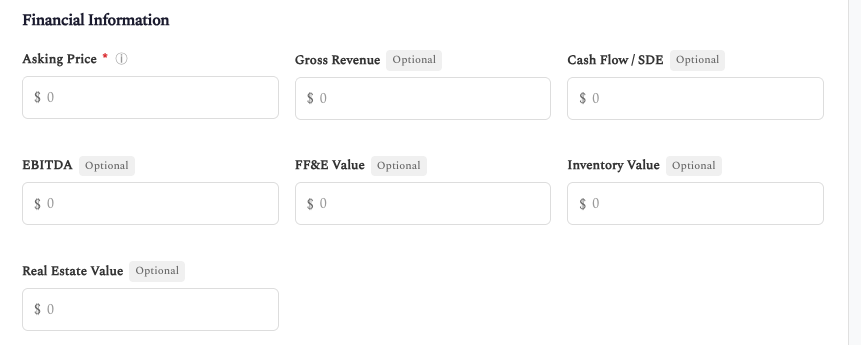
Financial fields including Asking Price, Gross Revenue, Cash Flow/SDE, EBITDA, FF&E Value, Inventory Value, and Real Estate Value
- Asking Price * – The listing price for the business. Can be updated later. Enter numbers only (system adds $ formatting).
- Gross Revenue – Annual gross revenue (optional)
- Cash Flow / SDE – Seller's discretionary earnings or adjusted net income (optional)
- EBITDA – Earnings before interest, taxes, depreciation, and amortization (optional)
- FF&E Value – Value of furniture, fixtures, and equipment included (optional)
- Inventory Value – Value of inventory included in the sale (optional)
- Real Estate Value – Value of real estate if included in the sale (optional)
Business Details
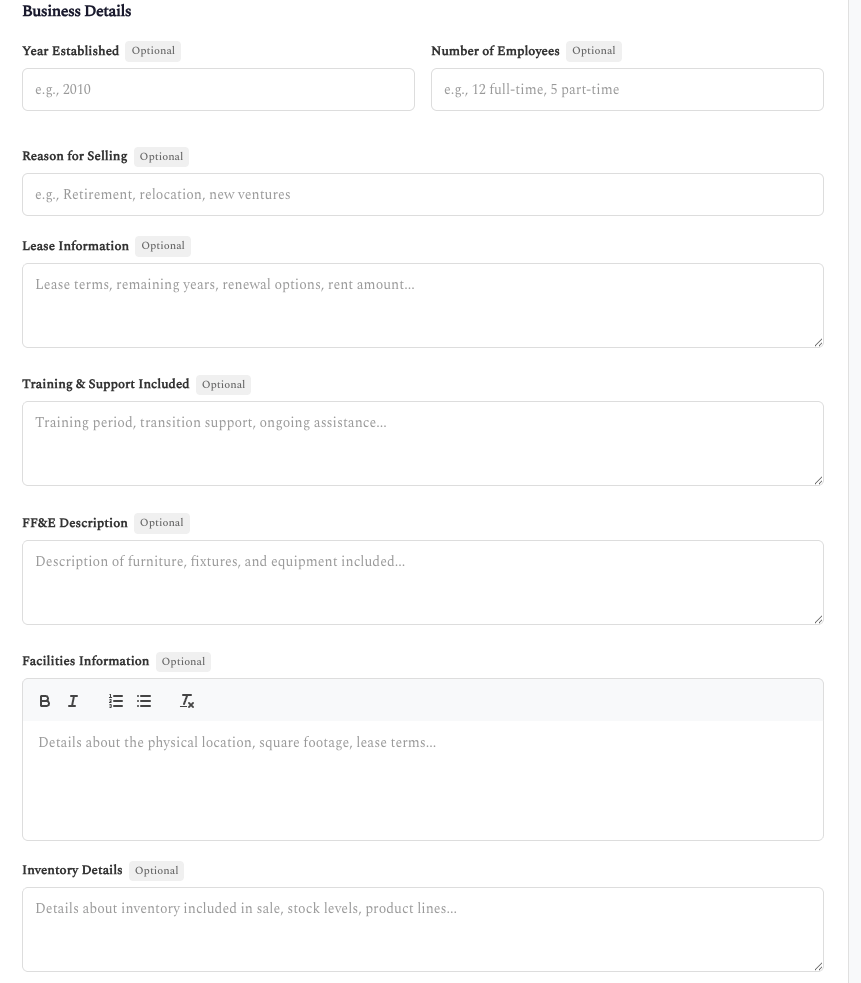
Business details including Year Established, Employees, Reason for Selling, Lease Information, Training & Support, FF&E Description, Facilities, and Inventory Details
- Year Established – When the business was founded (e.g., 2010)
- Number of Employees – Current headcount (e.g., "12 full-time, 5 part-time")
- Reason for Selling – Why the owner is selling (retirement, relocation, new ventures, etc.)
- Lease Information – Lease terms, remaining years, renewal options, rent amount
- Training & Support Included – Training period, transition support, ongoing assistance offered
- FF&E Description – Description of furniture, fixtures, and equipment included
- Facilities Information – Details about physical location, square footage, layout, features
- Inventory Details – Information about inventory included in the sale
Business Attributes & Publication Settings
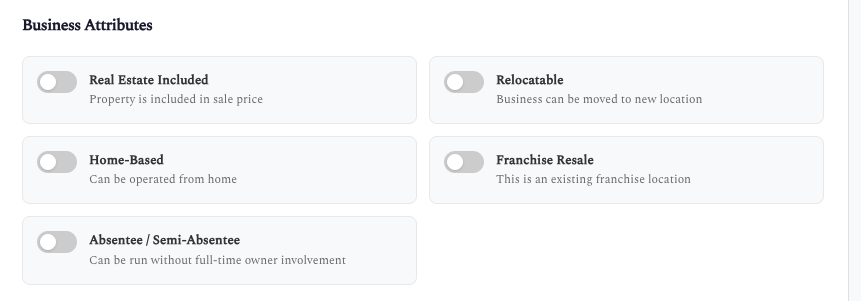
Business attribute toggles and publication settings including visibility and listing duration
Business Attributes – Toggle these options to highlight key features:
- Real Estate Included – Property is included in the sale price
- Relocatable – Business can be moved to a new location
- Home-Based – Can be operated from home
- Franchise Resale – This is an existing franchise location
- Absentee / Semi-Absentee – Can be run without full-time owner involvement
Publication Settings:
- Show in Public Directory – Public listings appear in search results. Hide to keep as draft or while making updates.
- Listing Duration * – How long the listing will remain active. You can renew or extend before expiration. Options: 90 Days, 180 Days (recommended).
Images & Media
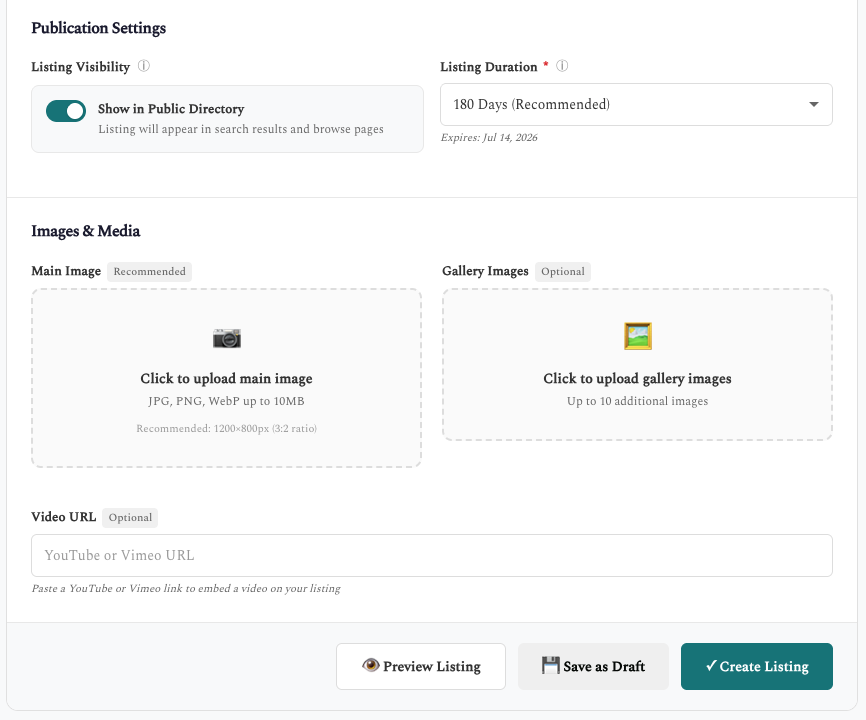
Image upload areas for main image and gallery, video URL field, and action buttons
- Main Image – Upload the primary listing image (JPG, PNG, WebP up to 10MB). Recommended: 1200x800px (3:2 ratio)
- Gallery Images – Upload up to 10 additional images to showcase the business
- Video URL – Paste a YouTube or Vimeo link to embed a video on your listing
Action Buttons:
- 👁 Preview Listing – See how the listing will appear to buyers before publishing
- 💾 Save as Draft – Save your progress without publishing
- ✓ Create Listing – Publish the listing (if "Show in Public Directory" is ON) or save as draft
8. Editing a Listing
From My Listings, click the Edit button on any listing to modify its details.
The Edit Listing form contains the same fields as the Create Listing form (see Section 7 above), but all existing data is pre-populated. Simply modify the fields you need to update.
Additional Edit-Only Options
The Edit form includes these additional options not available when creating:
- Listing Status – Change between Active, Pending, or Closed as the sale progresses
- Show Status Banner – Enable/disable the visual status overlay on listing cards (see Section 8)
Click "Save Changes" when finished. For published listings, changes take effect immediately.
9. Status Banners
Status banners provide a visual overlay on listing cards to indicate when a business is under contract (Pending) or sold (Closed).
How Banners Appear
When enabled, banners display diagonally across the listing image in Card view:
- PENDING – Yellow/gold banner for listings under contract
- CLOSED – Red banner for completed sales
Active listings never show a banner, even if the banner setting is enabled.
Controlling Status Banners
You can enable or disable status banners in several ways:
- Edit Page – Toggle "Show Status Banner" on the listing edit form
- GABBY – Say
"Enable status banner for [listing name]"
- Bulk Actions – Select listings and choose "Enable Banner" or "Disable Banner"
💡 Tip: Enable banners for Pending listings to help buyers see at a glance which businesses are under contract. This reduces inquiries on listings that are no longer available.
10. Bulk Upload Listings
Upload multiple listings at once using an Excel spreadsheet template. Perfect for brokers adding several listings simultaneously.
Click the 📤 Upload New Listings button to open the bulk upload modal.

Bulk Upload modal with template download button, instructions, and drag-and-drop file upload area
How to Bulk Upload Listings
- Download the Template – Click the green "Download Template" button to get the Excel file (.xlsx)
- Fill in Your Listings – Add one listing per row, completing all required fields
- Save the File – Keep it in Excel format (.xlsx)
- Upload the File – Drag and drop your file into the upload area, or click "Browse Files"
- Click "Upload Listings" – The system processes your file and creates all listings
⚠️ Important Notes:
- Bulk upload is for NEW listings only. To update existing listings, use the Edit button.
- Listing images cannot be included in bulk upload. A placeholder image will be used until you edit each listing.
- All bulk-uploaded listings are initially set to "Active" status with "Published" visibility.
- Review each listing after upload to ensure accuracy and add images.
11. Public Listing View
Click View from My Listings to see exactly how potential buyers see your listing on the public Businesses for Sale page.

Public listing page showing the hero image, status badge, financial highlights, full description, and broker contact sidebar
What Buyers See
- Hero image with status badge (Active, Pending, or Closed) in the corner
- Business name, industry category, and region/location
- Key financials in prominent highlight boxes: Asking Price, Revenue, Cash Flow, EBITDA
- About This Business – Your full description with formatting
- Facilities & Property – Location and real estate details
- Equipment & Assets – FF&E information
- Additional Details – Inventory, Reason for Sale, Training offered
- Contact Broker sidebar – Your photo, name, company, and a contact form for buyer inquiries
Share & Print Options
The public listing page includes sharing and print tools:
- 🖨️ Print – Generate a printer-friendly version for sharing with prospective buyers
- 🔗 Copy Link – Copy the listing URL for easy sharing via email or messaging
- Social Sharing – Share directly to LinkedIn, X (Twitter), Facebook, or via Email
12. Businesses for Sale (Public Page)
The Businesses for Sale page is the public-facing listing directory that shows all published listings from all GABB brokers. Visitors can browse, filter, and download listing information.
URL: gabb.bmgtesting.com/listings/businesses-for-sale
View Options
Visitors can switch between display modes using the toggle buttons:
⊞ Card
≡ List
☰ Table
Card View
Visual grid with images, prices, and descriptions – great for browsing:
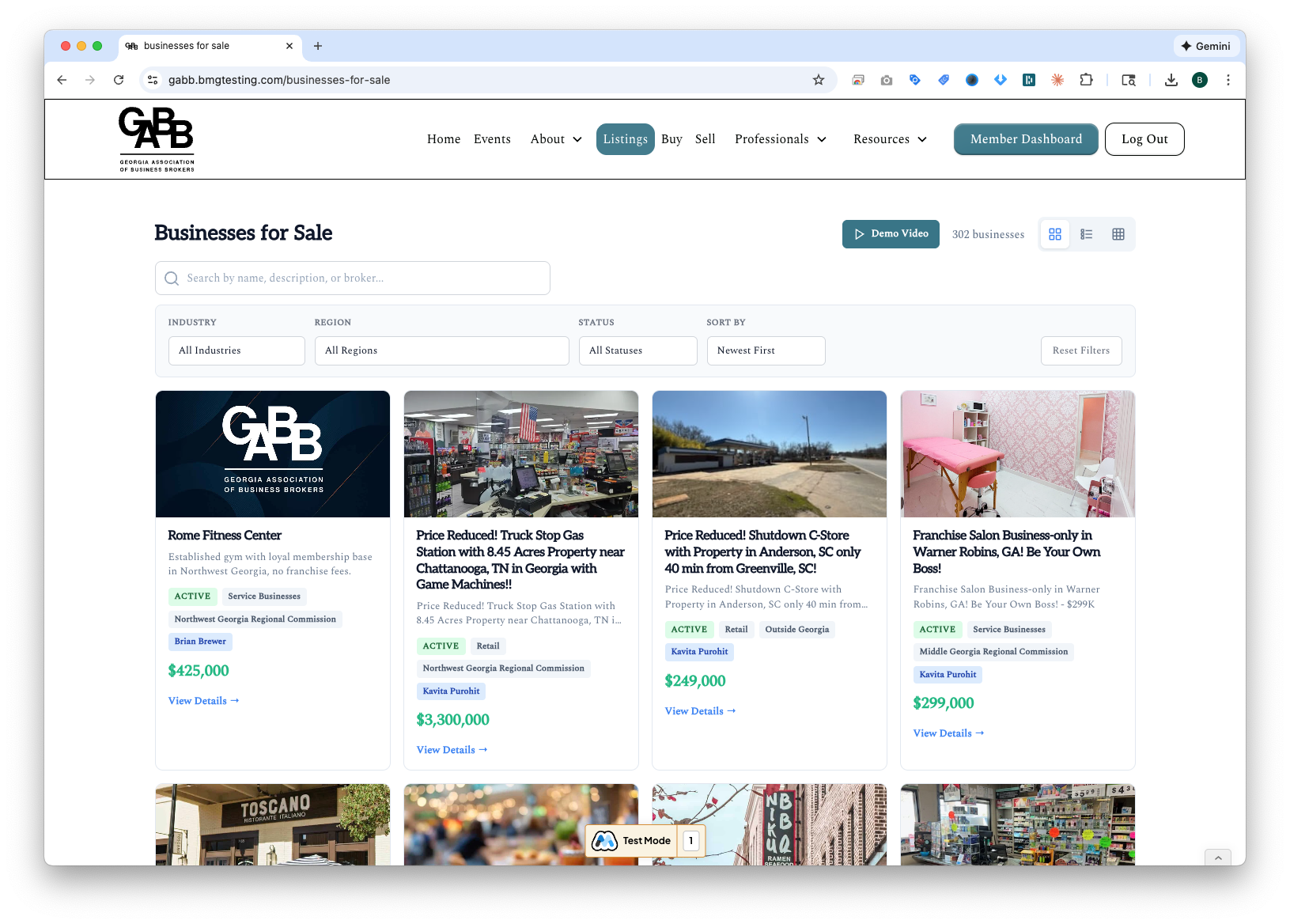
Businesses for Sale in Card View showing 302 listings
List View
Compact rows with key information:
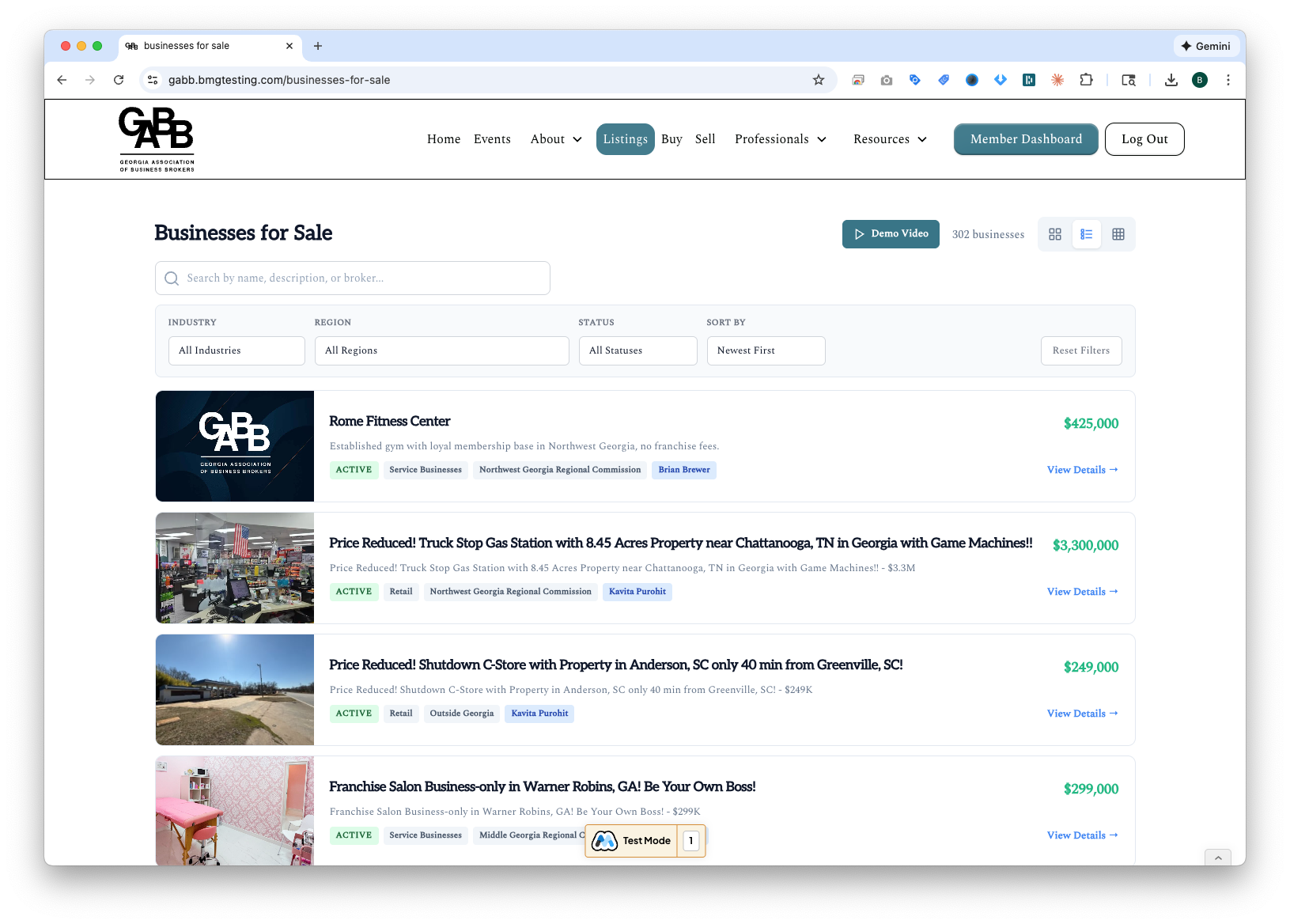
Businesses for Sale in List View
Table View
Full data table with sortable columns and selection capabilities:
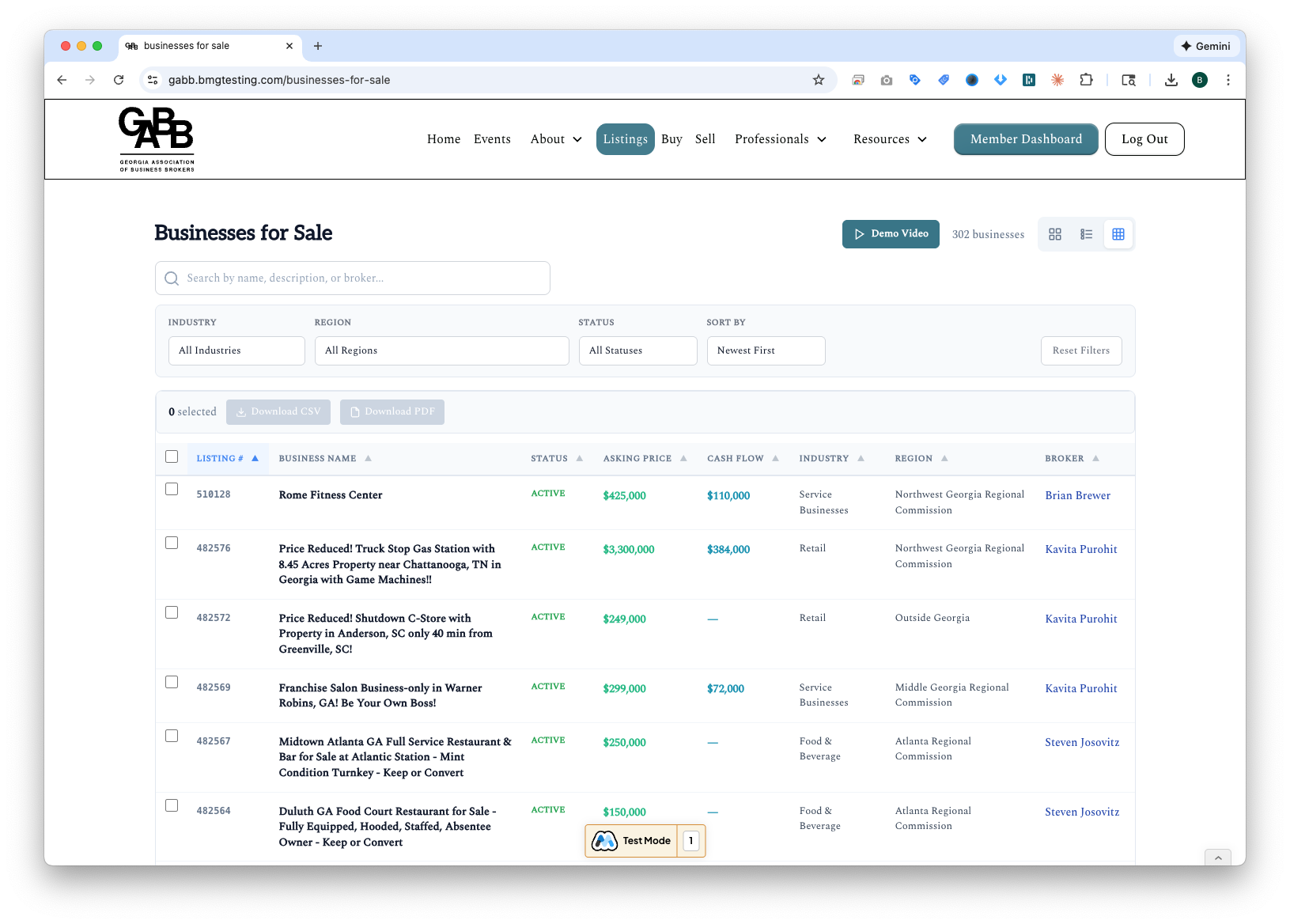
Businesses for Sale in Table View with selection checkboxes and export options
Filtering Listings
Visitors can filter listings using the dropdown menus:
- Industry Filter – Show only listings in specific industries (e.g., "Food & Beverage", "Healthcare", "Manufacturing")
- Region Filter – Show only listings in specific Georgia regions (e.g., "Atlanta Regional Commission", "Coastal Georgia")
- Status Filter – Filter by Active, Pending, or Closed status
- Sort By – Order results by Newest First, Price, or other criteria
- Search Box – Text search across listing names, descriptions, and broker names
Selection & Download
In Table View, visitors can select listings and download their data. This is perfect for buyers researching multiple opportunities or brokers creating market reports.
Example: Finding Food & Beverage Listings in Atlanta
- Switch to Table View using the toggle button
- Set Industry filter to "Food & Beverage"
- Set Region filter to "Atlanta Regional Commission"
- Check the boxes next to listings of interest (or use the header checkbox to select all)
- Click Download CSV or Download PDF to export
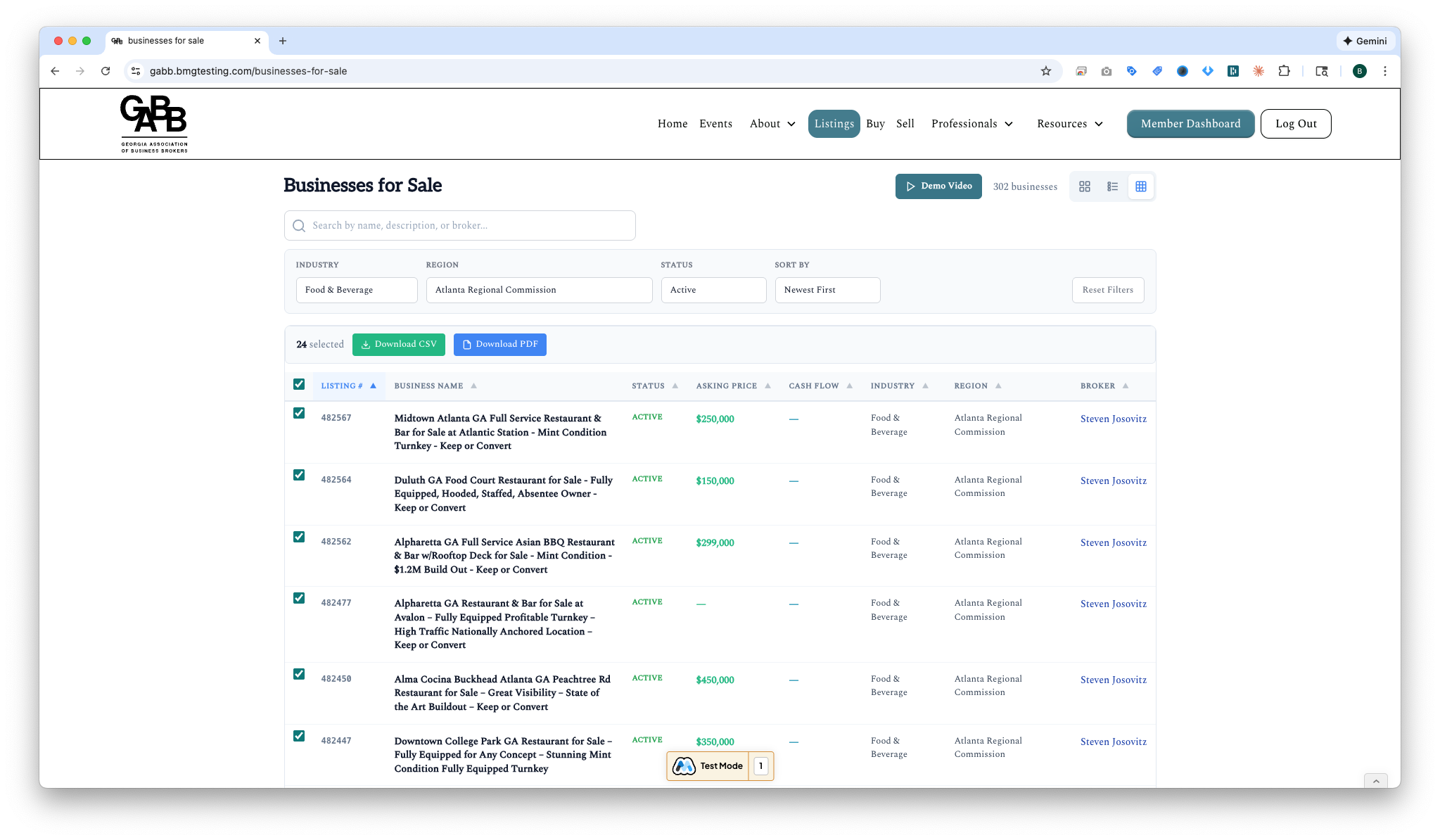
Table View filtered to Food & Beverage listings in Atlanta Regional Commission – 24 listings selected for export
PDF Export
The PDF export creates a professional document with all selected listing details, perfect for sharing with clients or keeping records:
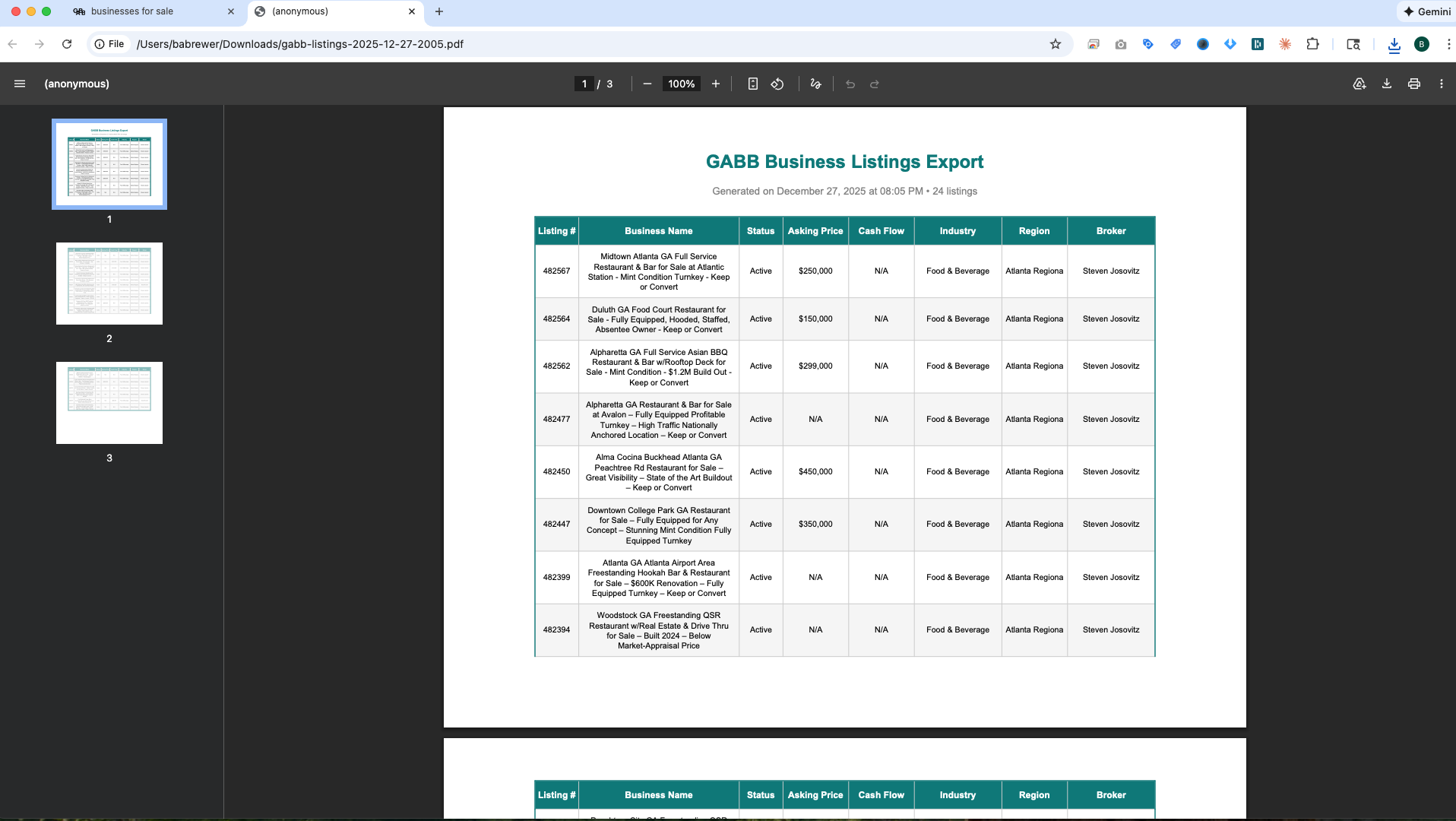
Generated PDF showing "GABB Business Listings Export" with 24 Food & Beverage listings in the Atlanta area
Sample PDF Content
Here's what the exported PDF looks like (first page of 3):
GABB Business Listings Export
Generated on December 27, 2025 at 08:36 PM • 24 listings
| Listing # |
Business Name |
Status |
Asking Price |
Cash Flow |
Industry |
Region |
Broker |
| 482567 |
Midtown Atlanta GA Full Service Restaurant & Bar for Sale at Atlantic Station - Mint Condition Turnkey - Keep or Convert |
Active |
$250,000 |
N/A |
Food & Beverage |
Atlanta Regional |
Steven Josovitz |
| 482564 |
Duluth GA Food Court Restaurant for Sale - Fully Equipped, Hooded, Staffed, Absentee Owner - Keep or Convert |
Active |
$150,000 |
N/A |
Food & Beverage |
Atlanta Regional |
Steven Josovitz |
| 482562 |
Alpharetta GA Full Service Asian BBQ Restaurant & Bar w/Rooftop Deck for Sale - Mint Condition - $1.2M Build Out |
Active |
$299,000 |
N/A |
Food & Beverage |
Atlanta Regional |
Steven Josovitz |
| 482477 |
Alpharetta GA Restaurant & Bar for Sale at Avalon – Fully Equipped Profitable Turnkey – High Traffic Location |
Active |
N/A |
N/A |
Food & Beverage |
Atlanta Regional |
Steven Josovitz |
| 482450 |
Alma Cocina Buckhead Atlanta GA Peachtree Rd Restaurant for Sale – Great Visibility – State of the Art Buildout |
Active |
$450,000 |
N/A |
Food & Beverage |
Atlanta Regional |
Steven Josovitz |
... and 19 more listings on pages 2-3
The exported PDF includes:
- Generation date and listing count
- Listing ID, Business Name, Status
- Asking Price and Cash Flow
- Industry and Region
- Broker name for each listing
💡 Tip: Use the CSV export when you need to work with the data in Excel or import it into other systems. Use PDF export for professional reports to share with clients.
13. Business Brokers Directory
The Business Brokers directory shows all GABB broker members. Like the Businesses for Sale page, it offers multiple views and filtering options.
URL: gabb.bmgtesting.com/find-a-professional/business-brokers
View Options
⊞ Card
☰ Table
108 brokers
Card View
Photo cards with broker name, company, and specialties:
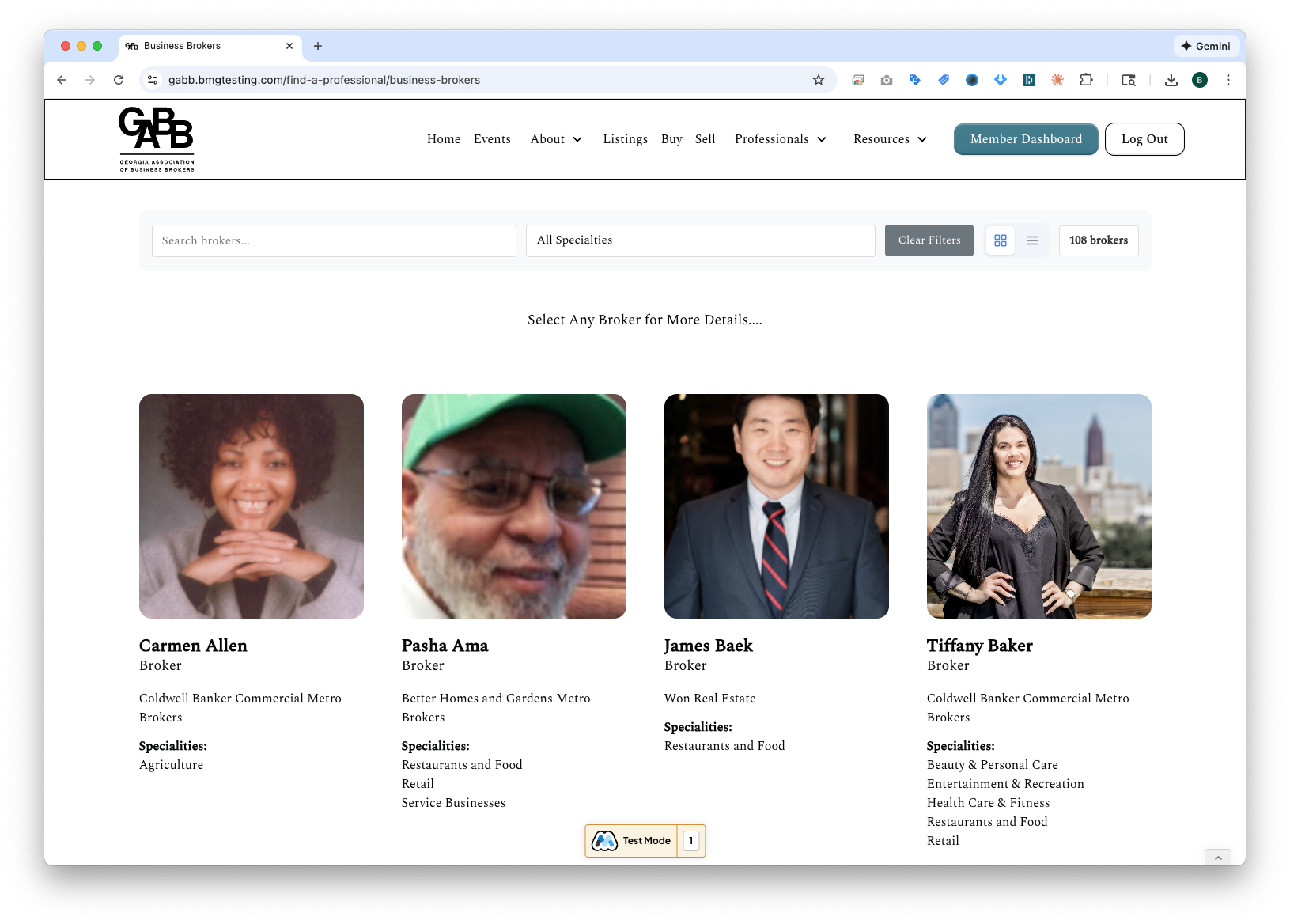
Business Brokers directory in Card View showing 108 brokers
Table View
Sortable table with contact information and selection checkboxes:
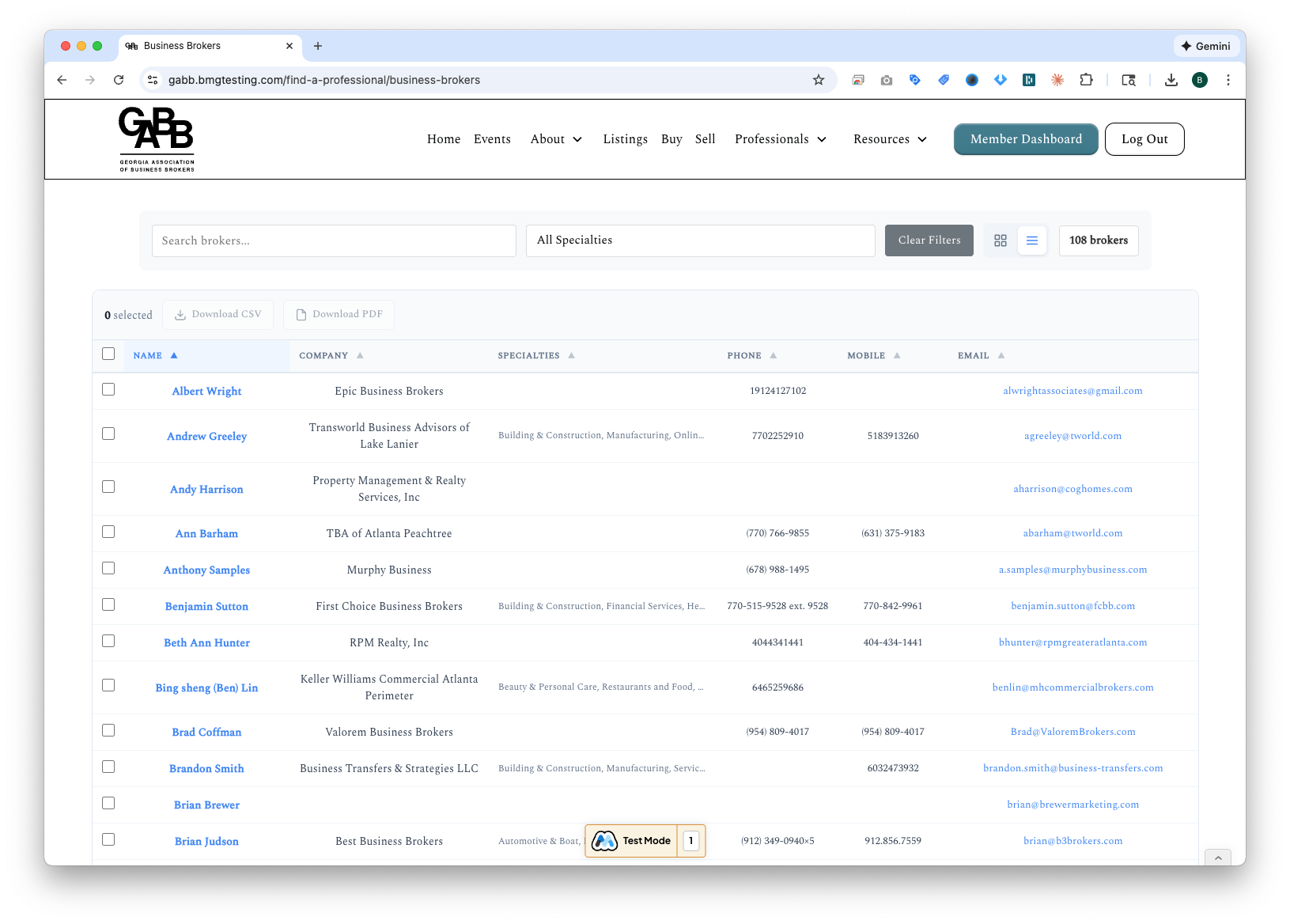
Business Brokers directory in Table View with contact details and export options
Filtering Brokers
- Search – Find brokers by name or company
- Specialties – Filter by business specialties
- Region – Filter by geographic region
Table View Features
- Sortable Columns – Click column headers to sort by Name, Company, Specialties, or Phone
- Selection Checkboxes – Select brokers to export their contact information
- CSV/PDF Export – Download selected broker data
14. Tips & Best Practices
📌 Best Practices for Successful Listings:
- Use high-quality images – Professional, well-lit photos significantly increase buyer interest.
- Write compelling descriptions – Lead with the most attractive selling points.
- Keep financials accurate – Buyers value transparency.
- Update listings regularly – Refresh details and pricing as circumstances change.
- Monitor expiration dates – Renew listings before they expire.
- Use status appropriately – Mark listings as Pending promptly when you have a signed LOI.
- Archive sold listings – Keep your active inventory clean and relevant.
Understanding Listing Statuses
| Status | When to Use | Public Display |
|---|
| Active |
Business is available for sale and actively marketed |
Shows "ACTIVE" badge on listing |
| Pending |
Under contract, LOI signed, or in due diligence |
Shows "PENDING" banner overlay on listing image |
| Closed |
Sale has been completed and finalized |
Shows "CLOSED" banner overlay on listing image |
Visibility vs. Status Explained
Listing Status (Active/Pending/Closed) indicates where the business is in the sales process and is visible to buyers.
Visibility (Published/Hidden) controls whether buyers can see the listing at all on the public site.
Common scenarios:
- Active + Published – Normal marketing state, buyers can find and inquire
- Active + Hidden – Preparing listing details, not ready for public view yet
- Pending + Published – Under contract but still visible so buyers know it's under contract
- Pending + Hidden – Under contract and temporarily removed from public view
- Closed + Published – Shows your track record of completed sales
Using GABBY Effectively
- Be Specific – Include listing ID or name when making changes
- Use Natural Language – GABBY understands conversational commands
- Check Results – Review changes after GABBY confirms them
- Use Undo – Made a mistake? Say "undo" within 30 seconds
- Try Bulk Commands – Save time with commands like "unpublish all closed listings"
Profile Optimization
- Professional Photo – Use a clear, professional headshot
- Complete Bio – Highlight your experience and specialties
- List Specialties – Help buyers find you by industry expertise
- Keep Contact Info Current – Ensure phone and email are up to date
Need Help?
If you have questions about using the broker portal or encounter any issues, please contact GABB support or ask GABBY "help" for guidance on any feature.
GABB Broker Portal Guide
Georgia Association of Business Brokers
Last Updated: January 2026
Version 3.0